vscode
Small images of VS Code features for instructions on how to use VS Code. — 18 images

A simple icon showing a document or file with a folded corner and an arrow pointing to the right, commonly used in VS Code to represent opening or navigating to a file.

A green button or banner with white text that reads 'Create codespace on master'. This appears to be a UI element from Visual Studio Code related to creating a GitHub Codespace.

A green button or label showing the text 'Create codespace on master', which appears to be a UI element from GitHub or VS Code for creating a cloud-based development environment.

A row of VS Code interface icons showing various toolbar buttons and controls, including layout options, navigation arrows, undo/redo, and command palette shortcuts. These are standard UI elements found in the VS Code editor interface.

A simple icon showing overlapping document or file pages, representing file management or code editor functionality in VS Code.

A simple icon showing a network or connection diagram with nodes (circles) connected by lines, with a blue circle labeled '3' highlighted in the lower right. This appears to be a VS Code interface icon representing debugging, extensions, or connection management features.

A simple illustration of a flag with a lightning bolt symbol on it, rendered in grayscale. This appears to be a VS Code interface icon or indicator, likely representing a breakpoint, debugging feature, or code execution flag used in the IDE's debugging tools.
A screenshot of a user interface showing an 'ACTIONS' section with three buttons: a blue 'Next Lesson' button at the top, and two buttons below it - a green 'Run' button with a play icon and a red 'Stop' button. This appears to be from an educational coding platform's interface.

A simple black and white icon of a desktop monitor or computer screen, commonly used in software interfaces to represent display settings or screen-related features.

A screenshot showing a row of VS Code interface icons including a play/run button, dropdown arrow, split editor panel button, and a menu button with three dots.

A screenshot of Python code in Visual Studio Code showing a beginner programming example. The code demonstrates importing the datetime module, getting today's date, creating a string with a message, and printing it. A red arrow annotation points to the import statement at the top.
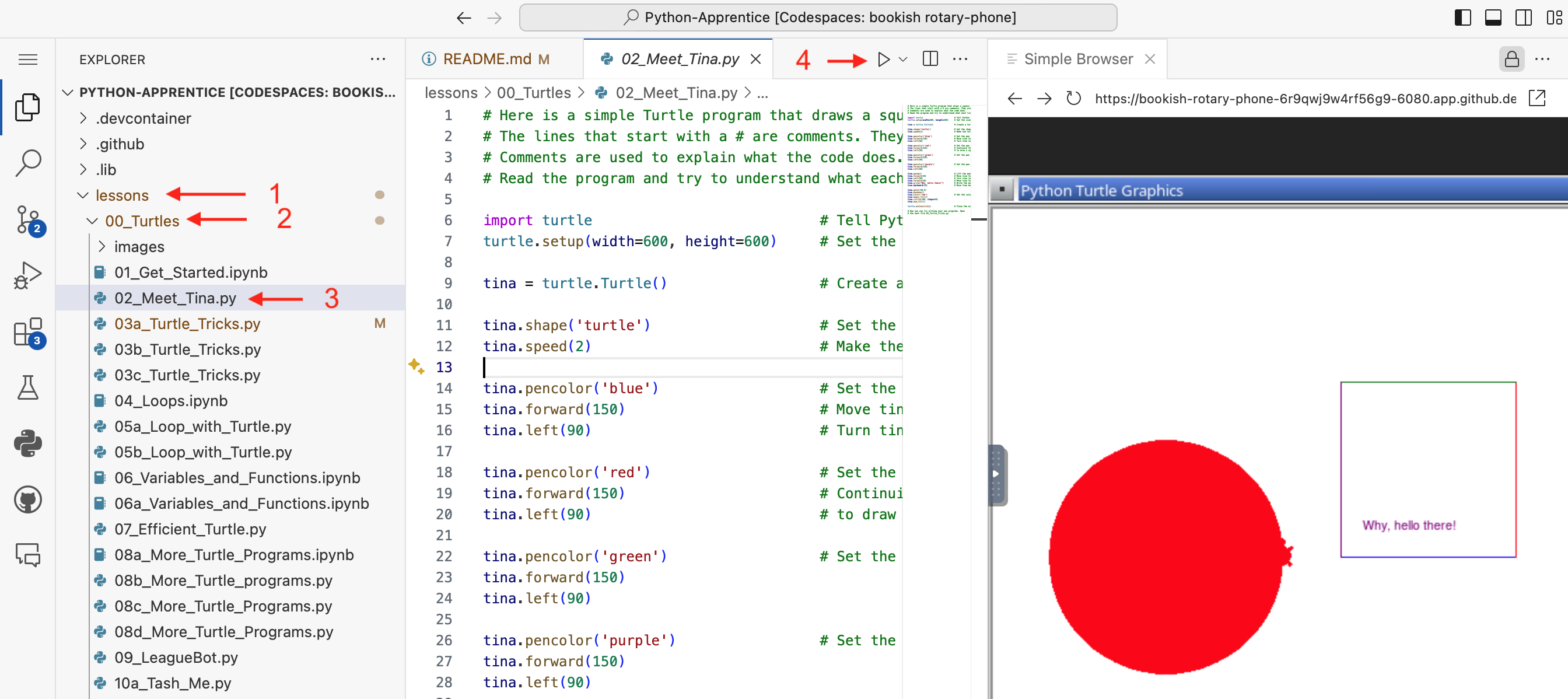
A screenshot of VS Code showing a Python programming lesson from The League's Python-Apprentice curriculum. The left panel displays a file explorer with lesson folders and Python files (including turtle graphics exercises), the center shows Python code for a turtle graphics program with comments, and the right panel displays the output - a red circle drawn by the turtle graphics program with 'Why, hello there!' text.
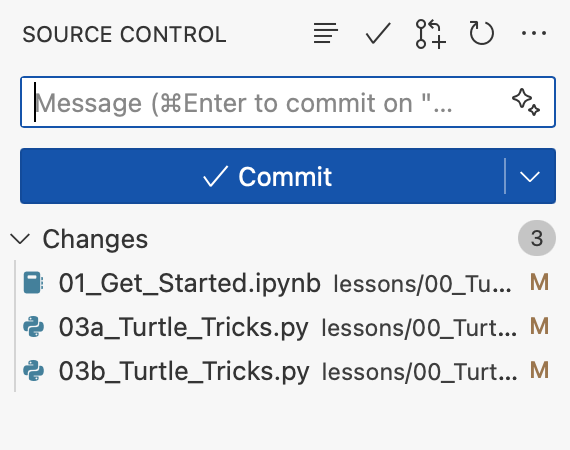
A screenshot of a source control interface in VS Code showing a commit dialog. The interface displays a message input field, a blue "Commit" button, and a list of 3 modified files related to Python lessons including turtle tricks and getting started modules.
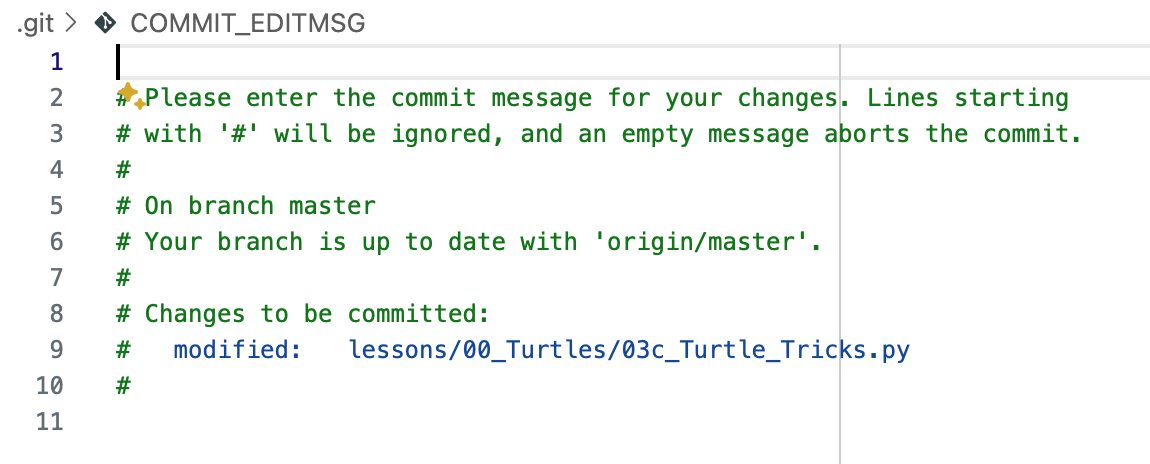
A screenshot of a Git commit message editor in VS Code showing the COMMIT_EDITMSG file. The editor displays default git commit instructions in green text, including a section showing that a file 'lessons/00_Turtles/03c_Turtle_Tricks.py' is modified and ready to be committed.

A screenshot of a VS Code interface element showing a blue header bar with white text that reads 'Sync Changes 1↑', indicating a synchronization feature with one pending change to upload.

A screenshot of a Jupyter kernel selection dialog in VS Code. The interface shows a search box with placeholder text "Type to choose a kernel source" and two options below: "Python Environments..." and "Existing Jupyter Server..."
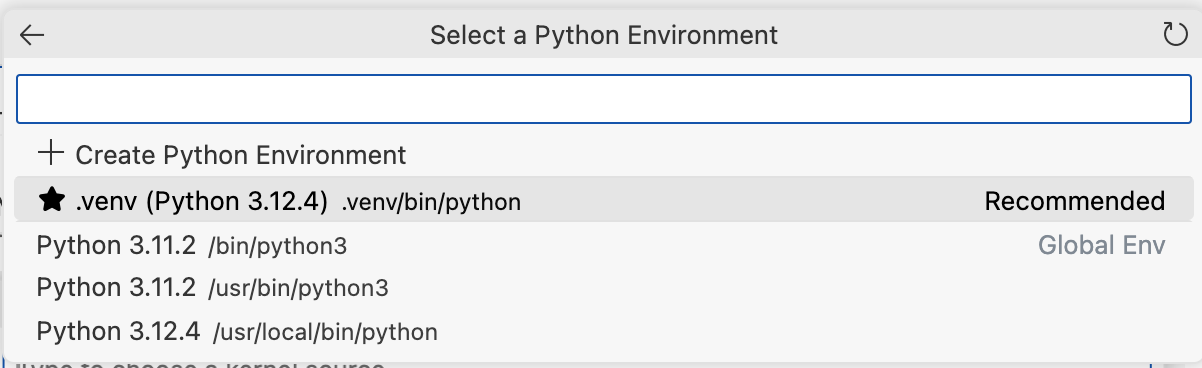
A screenshot of a Python development environment selection dialog in VS Code. The interface shows options to create a new Python environment or select from existing ones, including a recommended .venv (Python 3.12.4) and several other Python installations.
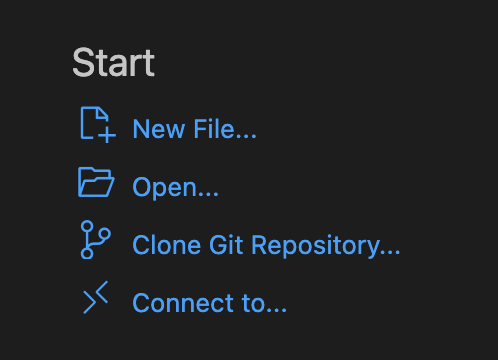
A screenshot of a VS Code Start menu showing options for creating a new file, opening files, cloning a Git repository, and connecting to a remote environment. This appears to be from Visual Studio Code's welcome screen with a dark theme.